
PLAYCATION KIDS CLASS SIGN-UP
WHAT WOULD YOU LIKE TO DO?
Choose the option below that matches your situation.
1. USE A DISCOUNT OR COMPLIMENTARY-CLASS CODE
I have a code to use when booking a drop-in class.
SHOW ME HOW
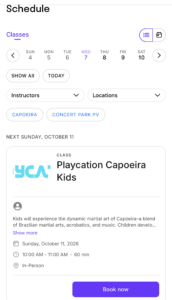
STEP 1 — Choose Your Class
- Visit our class schedule → choose your date → click Book Now
- If membership options appear → select Purchase drop-in
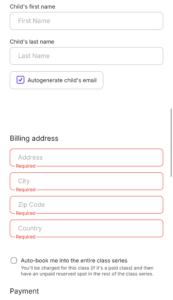
STEP 2 — Enter Parent and Child Information
- Already have an account? Sign in → select your child under Buy for
- New to Momence? Enter the parent’s information first → select the child-booking option → enter your child’s information
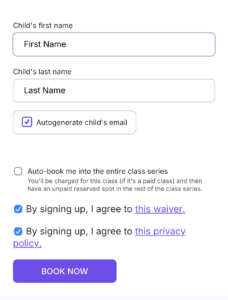
- Use the auto-generated child email option if offered

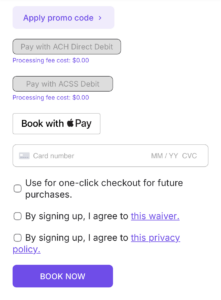
STEP 3 — Apply Your Code
- In the Payment section → click Apply promo code
- Enter the code you received → click Apply code
STEP 4 — Check Your Discount
- Confirm the discount has applied before completing your booking
- A complimentary-class code removes the class charge → the payment fields may disappear
- If a balance remains for a complimentary class or the code is not accepted → contact us before paying
- For a partial discount code → enter payment details for the remaining balance
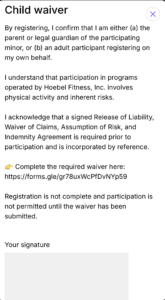
STEP 5 — Sign Forms and Complete Your Booking
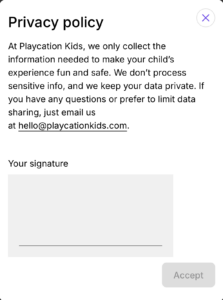
- Review the waiver and privacy policy → complete the required agreements
- Click Book Now → your spot is reserved only after you complete this step
STEP 6 — Check Your Confirmation Email and Finish Creating Your Account
- Check your email for a message from Momence with the subject: “You’re in! Confirmation for Playcation Capoeira Kids”
- To finish creating your account, click “Click here to create it” next to Password
- On the password reset page, enter the same email address you used to book and click Reset Password
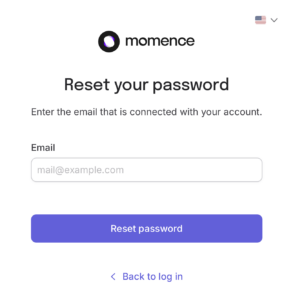
- Check your email again for a password reset message from Momence
- Open that email, click the password reset link, and create your password.

- After setting your password, you’ll land on the “Welcome Back” login page
- If you want to view your account or classes, log in with your email and new password. Your drop-in class is already booked, so there’s nothing else you need to do
2. PURCHASE A DROP-IN CLASS
I only want to book and pay for ONE class.
SHOW ME HOW
STEP 1 — Choose Your Class
- Visit our class schedule → choose your date → click Book Now
STEP 2 — Enter Your Information
- Check the “Are you booking for a child?” box
- Then fill in the parent’s information first, followed by the child’s information
- Check the “Auto-generate child’s email” box when offered and fill in your billing information
STEP 3 — Enter Payment Information
- Enter your credit card information or choose another form of payment
STEP 4 — Sign Forms and Book Now
- Sign the “this waiver” form
- Sign the “this privacy policy” form
- After signing both forms, click “BOOK NOW” to complete your purchase
STEP 5 — Check Your Confirmation Email and Finish Creating Your Account
- Check your email for a message from Momence with the subject: “You’re in! Confirmation for Playcation Capoeira Kids”
- To finish creating your account, click “Click here to create it” next to Password
- On the password reset page, enter the same email address you used to book and click Reset Password
- Check your email again for a password reset message from Momence
- Open that email, click the password reset link, and create your password.
- After setting your password, you’ll land on the “Welcome Back” login page
- If you want to view your account or classes, log in with your email and new password. Your drop-in class is already booked, so there’s nothing else you need to do
3. PURCHASE FIRST CLASS PACK
I want to purchase my first Class Pack and have NOT purchased a Drop-in class.
SHOW ME HOW
STEP 1 — Choose Your Class
- Visit our class schedule → choose your date → click Book Now
STEP 2 — Choose Class Pack
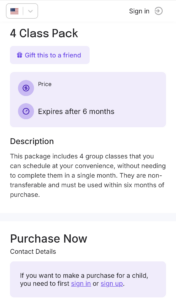
- Select the 4 Class Pack option

STEP 3 — Sign Up for Your Momence Account
- Click “Sign Up”
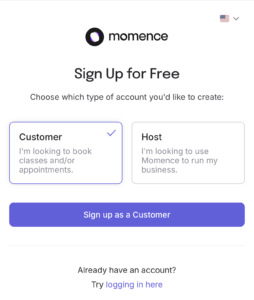
STEP 4 — Sign Up as a Customer
- Select Customer
- Click Sign Up as a Customer
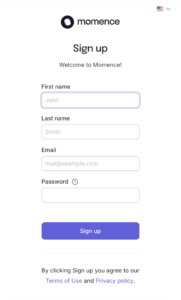
STEP 5 — Create Your Account
- Enter your first and last name
- Enter your email address
- Create a password
- Click “Sign Up”
STEP 6 — Return to the Class Schedule
- After signing up, Momence will take you to the “Your Classes” page
- Return to the original browser tab with the Playcation Kids class schedule
- If you can’t find that tab, visit our class schedule
- Select the same class date again
- Click “Book Now” to continue your 4 Class Pack purchase

STEP 7 — Create Your Child Account
- Under “Buy for,” tap “This account”
- Select “Create a new child account” from the list

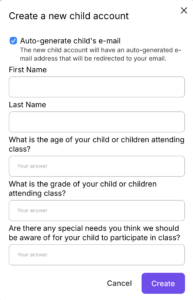
STEP 8 — Enter Your Child’s Information
- Enter Child Info
- Enter your child’s age and grade
- Add any special needs information, if applicable
- Click “Create”
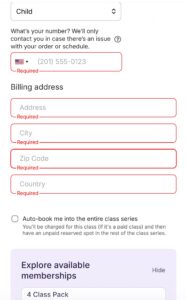
STEP 9 — Enter Billing Information and Select Your Class Pack
- Make sure your child’s account is selected at the top under “Buy for”
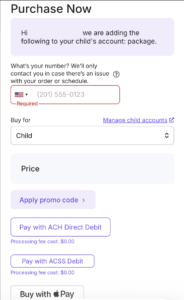
- Enter your phone number
- Enter your billing address
- Under “Explore available memberships,” select the 4 Class Pack
STEP 10 — Select Your Child and Complete Payment
- Enter your phone number
- Under “Buy for,” select your child’s account
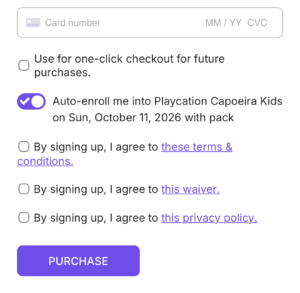
- Enter your credit card information or choose another available payment option
- Leave “Auto-enroll my child into…” turned on for the class date you selected
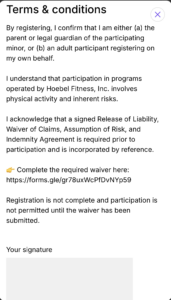
- Review and sign the Terms and Conditions and any other required forms shown
- Click “PURCHASE” to complete your purchase
- You’ll receive two confirmation emails, one with the subject “You’re in! Confirmation for Playcation Capoeira Kids” showing the date and time of your class, and one confirming your 4-Class Pack purchase
4. FIRST CLASS PACK AFTER DROP-IN
I have already purchased a Drop-in class and now want to purchase my first Class Pack.
SHOW ME HOW
STEP 1 — Choose Your Class
- Visit our class schedule → choose your date → click Book Now
STEP 2 — Choose Class Pack
- Select the 4 Class Pack option
STEP 3 — Sign In to Your Momence Account
- Click “Sign In”
- Enter the same email address and password you created after booking your drop-in class
STEP 4 — Select Your Child Account
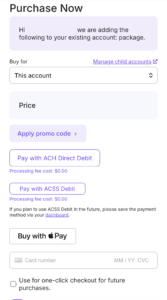
- Under “Buy for,” tap “This account”
- Select your child’s account from the list
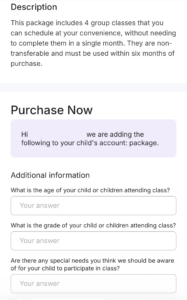
STEP 5 — Enter Your Child’s Information
- Enter your child’s age and grade
- Add any special needs information, if applicable
STEP 6 — Sign Required Forms and Complete Payment
- Enter your credit card information or choose another available payment option
- Leave “Auto-enroll my child into…” turned on for the class date you selected
- Review and sign the Terms and Conditions and any other required forms shown
- Click “BOOK NOW” to complete your purchase
- You’ll receive two confirmation emails, one with the subject “You’re in! Confirmation for Playcation Capoeira Kids” showing the date and time of your class, and one confirming your 4-Class Pack purchase

Booking a future class? Visit playcationkids.com → click Join a Class anytime.
Need help? Email hello@playcationkids.com.